 SKU Stock Sync Docs
Check shared SKUs in Shopify
Follow a quick Shopify check to confirm whether variants share the exact same SKU and may be grouped for syncing.
Why this check matters
If variants are expected to share stock in SKU Stock Sync, they must use the same SKU in Shopify. This quick check shows whether other variants are using that SKU.
Open the variant in Shopify
In Shopify, open the product variant you want to check.
Find the SKU details
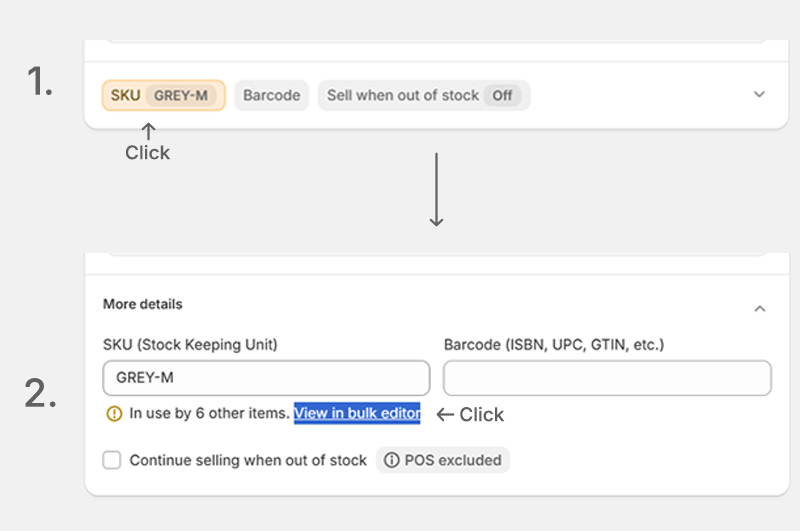
Look for the SKU field. If needed, click the SKU button to expand More details.
Look for the shared SKU message
Under the SKU field, message like In use by ... other items should appear. If the SKU button is orange.
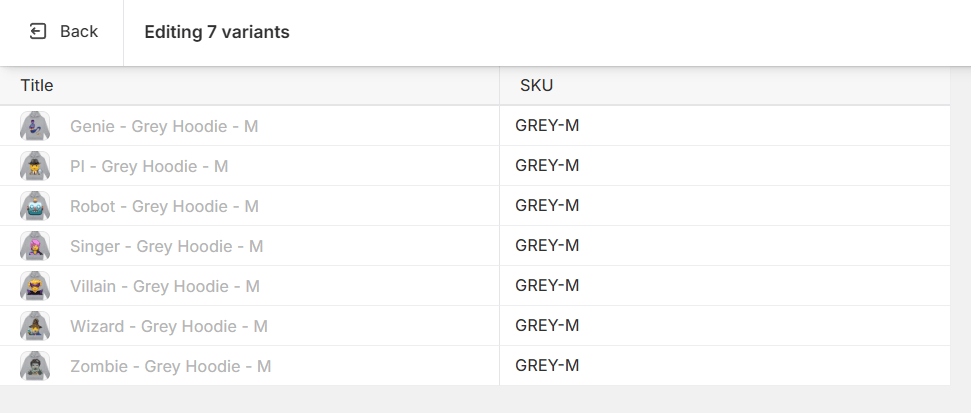
If you see that message, click View in bulk editor to open the full list of matching variants.
Review the matching variants
In the bulk editor, Shopify shows the variants using that exact same SKU. This is the fastest way to confirm which items are grouped by SKU.
What to confirm
-
The variant has a SKU entered in Shopify.
-
The SKU button is orange to indicate that other variants share the same SKU.
-
View in bulk editor shows the variants you expect to match.
-
The SKU value is exactly the same on every matching variant.
Note
SKUs must match exactly. Even a small difference such as an extra space, dash, or letter case change can stop variants from being treated as the same SKU.
The same SKU can appear in more than one group when different locations are involved. What matters first is whether the SKU itself matches exactly.