 SKU Stock Sync Docs
How syncing works
Learn how SKU Stock Sync decides what to sync, when groups are updated, how stock totals are calculated, and why some runs appear in History while others do not.
SKU Stock Sync updates only what needs attention
SKU Stock Sync does not push inventory across your entire store every time something changes. Instead, it watches for stock changes and then syncs the specific inventory groups that need updating.
This makes syncing more efficient while still keeping linked products responsive when stock matters most.
Syncing is event-driven and scheduled. That means the app reacts to stock change notifications, then processes the affected groups on a schedule. It is not a continuous full-store sync.
What is a due group?
A group becomes due when one of its linked SKU and location combinations has an available stock change and the app receives that change notification.
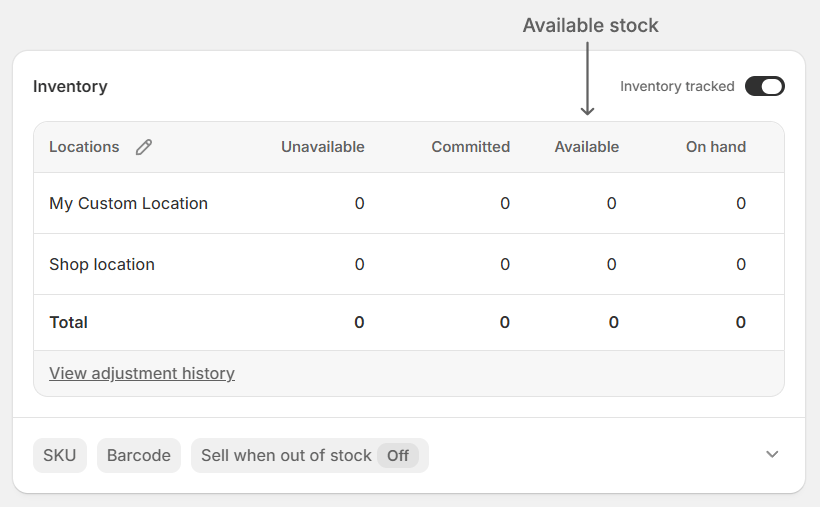
In plain language: if one item in a synced group changes stock, that group is marked for syncing.
Only groups that are due are queued for sync. Groups with no relevant stock changes are left alone.
Why some due groups sync more often than others
Once a group is due, the app decides when it should be processed.
-
Regular schedule: used for groups that need quicker attention.
-
Daily schedule: used for groups whose stock is safely above 50, so they do not need to be checked as often.
This helps the app stay efficient while still being more responsive when stock gets closer to low levels.
Note
If a group's stock is safely above 50, it may be processed on the less frequent daily schedule. If stock later drops below that level, the group can move back to the more frequent regular schedule.
The goal is simple: higher stock can usually wait a bit longer, while lower stock gets more attention.
If you want more detail about timing, see Scheduled syncing.
How the app calculates the new stock level
When a due group is processed, the app works out the stock level that all members of the group should share.
If more than one member changed before the sync runs, the app accounts for all of those changes, not just the latest one.
This is important because several items in the same group may change close together. The app adds up the full effect of those changes before updating the group.
Example
Imagine a group starts at 10 stock, and it has 3 members.
Before the sync runs, each member changes from 10 to 11:
-
Member 1: 10 → 11
-
Member 2: 10 → 11
-
Member 3: 10 → 11
Each member increased by 1, so the total change across the group is +3, not just +1.
That means the new shared stock becomes:
- Group: 10 → 13
Then all members are updated to match:
-
Member 1: 11 → 13
-
Member 2: 11 → 13
-
Member 3: 11 → 13
Tip
If several linked items change before a scheduled sync runs, that is expected. The app includes all of those changes when calculating the new group total.
What you will see in History
When a sync completes and makes changes, the app creates a History run with details about what happened.
You can review those runs here: Sync history.
If a scheduled run checks a due group but there is nothing new to update, a History entry may not be created.
Note
No History entry usually means no actual inventory update was needed for that run. However, thats not always the case, see Insights for more information.
In short
-
The app syncs due groups, not your whole store.
-
A group becomes due when a member's available stock changes and the app receives that update.
-
Groups with stock safely above 50 may be processed less often.
-
If stock drops later, the group can return to a more frequent schedule.
-
When multiple members change before syncing, the app counts all of those changes.
-
Completed syncs with actual updates create History runs; no-change runs may not appear in History.
How SKU Stock Sync works
A simple overview of how SKU Stock Sync keeps variants with the same SKU aligned at the same Shopify location, and how scheduled and manual syncing work.
Quick setup
Learn what to expect after installing SKU Stock Sync, how to tell setup is still running, and where to go next once your inventory groups are ready.