 SKU Stock Sync Docs
Quick setup
Learn what to expect after installing SKU Stock Sync, how to tell setup is still running, and where to go next once your inventory groups are ready.
What to expect during setup
When you install SKU Stock Sync and open the app for the first time, setup starts automatically. You do not need to manually start setup or map inventory yourself.
Setup prepares the app so it can detect variants that share the same SKU at the same Shopify location.
Note
Larger stores may take a few minutes to finish setup. The longest part is usually waiting for Shopify to prepare your inventory data.
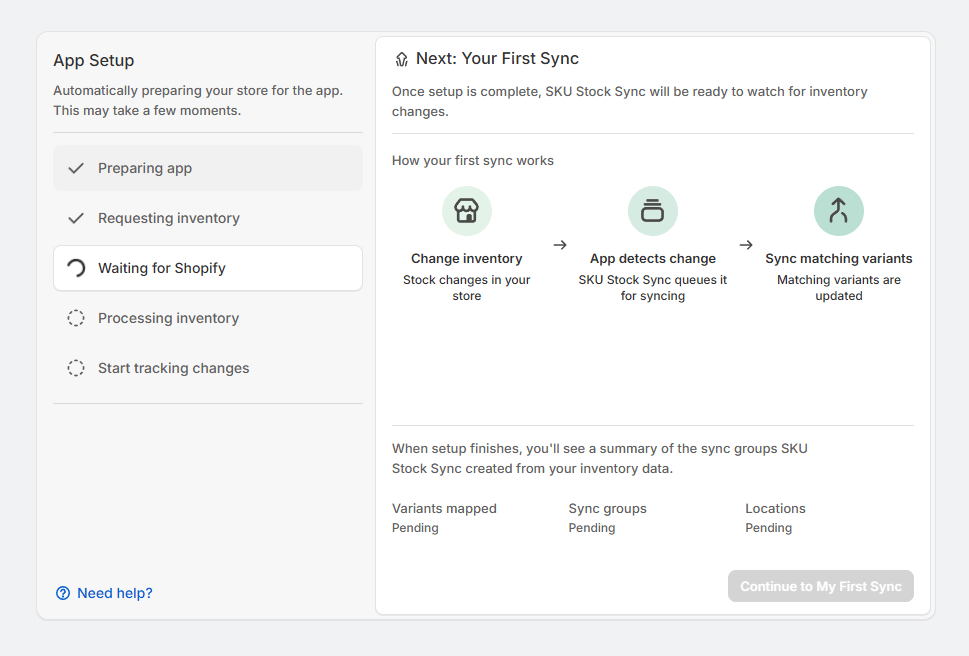
What the app is doing
During setup, SKU Stock Sync requests your inventory data from Shopify. Once Shopify finishes preparing that data, the app organizes your variants by SKU and location.
This allows SKU Stock Sync to find inventory that can be synced together without asking you to manually create groups during setup.
Setup does not change your stock levels. It prepares the app so inventory changes can be tracked and synced after setup is complete.
Understanding the setup steps
Preparing app
The app creates the records it needs to track setup, syncs, and history for your store.
Requesting inventory
The app asks Shopify to prepare your store inventory data.
Waiting for Shopify
Shopify is preparing the inventory data. This step can take the longest, especially for larger stores.
Processing inventory
SKU Stock Sync is organizing your inventory by SKU and Shopify location.
Start tracking changes
Setup is complete and the app is ready to track inventory changes.
What to do while setup finishes
If setup is still running, there is usually nothing you need to fix. The app is still working in the background.
You can wait on the setup page, or leave and come back later. Once setup is complete, the page will show what SKU Stock Sync found in your inventory.
Note
If setup takes longer than expected, it usually means Shopify is still preparing your inventory data. This can happen on stores with more products, variants, or locations.
When setup is complete
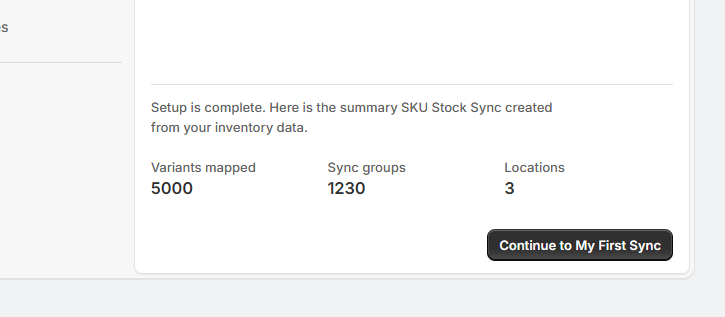
When setup finishes, the setup page will show a summary of what SKU Stock Sync found in your store.
This may include details such as:
-
How many variants were mapped
-
How many sync groups were found
-
How many locations were checked
Recommended next step: My First Sync
After setup is complete, the recommended next step is to complete My First Sync.
My First Sync helps you create a safe test sync, trigger an inventory change, and review the result in History. This is the fastest way to confirm how SKU Stock Sync works before relying on it for live inventory changes.
Create or use test products
The guide can help you create safe test products for your first sync.
Change inventory
You will update stock for one of the test variants in Shopify.
Run or wait for the sync
SKU Stock Sync detects the change and prepares matching variants to be synced.
Review the result in History
After the sync runs, History shows what was checked, updated, or skipped.
My First Sync is optional, but it is recommended for new users. It helps you see the app working before depending on it for real products.
If you skip My First Sync
You can skip My First Sync if you already understand how the app works or do not want to create test products.
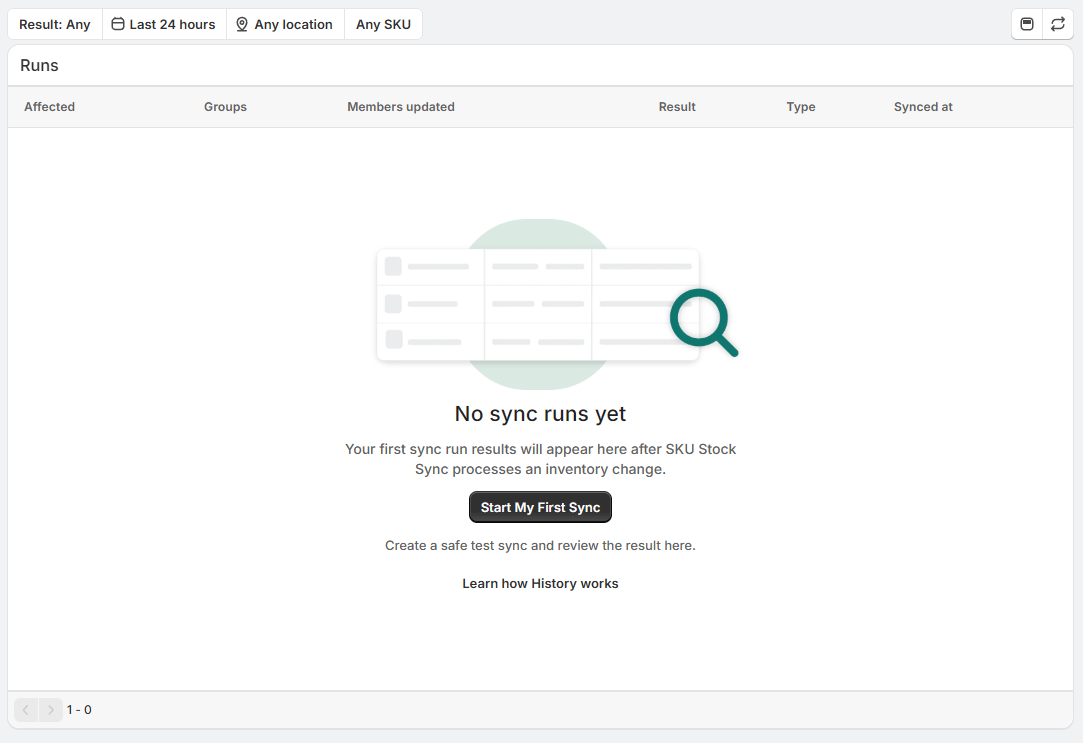
If you skip it, your History page may stay empty until SKU Stock Sync processes an inventory change for your real products.
If History is empty after setup
An empty History page usually means no sync has run yet. History will begin showing results after SKU Stock Sync processes an inventory change.
If you want to create your first history result, open My First Sync and follow the guided steps.
How syncing works
Learn how SKU Stock Sync decides what to sync, when groups are updated, how stock totals are calculated, and why some runs appear in History while others do not.
What the app does not do
Understand the boundaries of SKU Stock Sync, including what it does not sync, how groups work, and what the app does instead.