 SKU Stock Sync Docs
Manual syncing
Learn what manual syncing does, how to run it, when it helps, and what it will actually process in SKU Stock Sync.
What manual sync does
Manual sync lets you process work that is already waiting, sooner, instead of waiting for the next scheduled sync.
It is useful when you want faster confirmation that SKU Stock Sync has picked up work that is already ready to be processed.
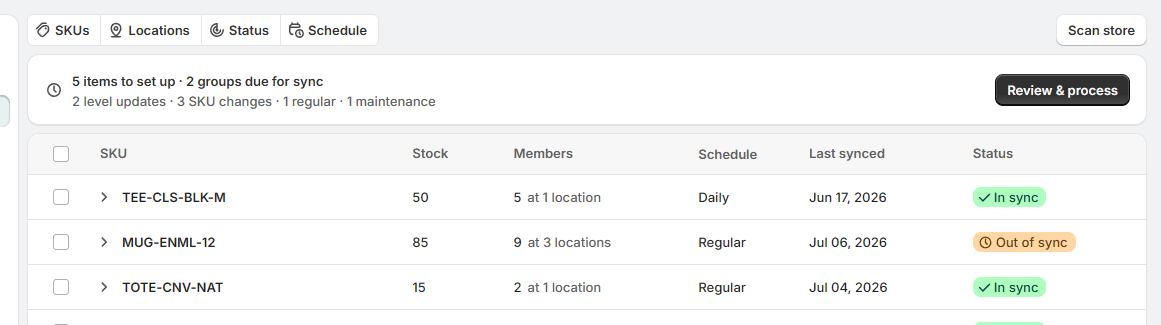
Manual sync does not run a store-wide sync of your full catalog. It only processes work that is already waiting for attention, such as:
-
Groups that are currently due to sync
-
Members that are queued for setup so they can be sorted into the correct group
If nothing is currently due and no members are waiting to be prepared, a manual sync will not have any work to do.
Info: Think of manual sync as a way to process pending work now. It is not a force-sync for every product or SKU in your store.
How to run a manual sync
-
Open the Groups page: In the app sidebar, go to Groups.
-
Start a manual sync: Open the manual sync action from the Groups page.
-
Choose what to process: In the modal, select the waiting work you want to process in this manual sync.
-
Start the sync: Click Start sync to begin.
If you want to understand the normal timing first, see Scheduled syncing and When inventory gets synced.
Manual sync modal
When you start a manual sync, a modal opens so you can choose which waiting work should be processed now.
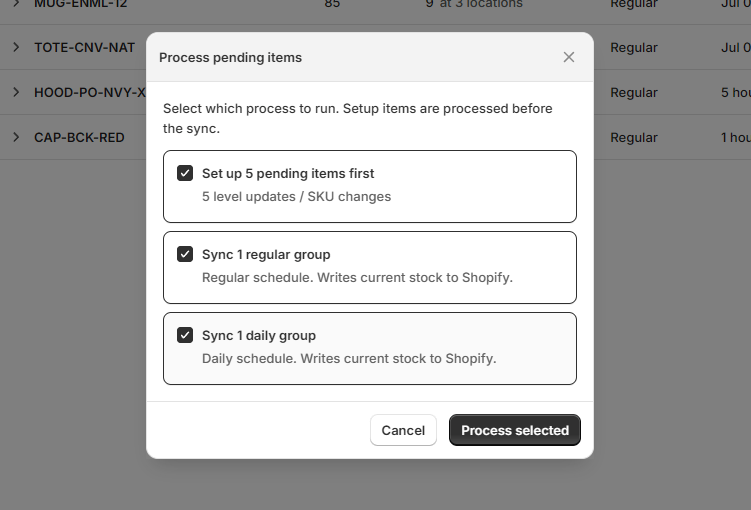
If groups are due on both schedules, the modal can show both options:
-
Regular due groups
-
Maintenance due groups (the daily schedule)
You can select either one, or select both if both are waiting and you want both processed in the same manual sync.
The modal can also appear in a second state: there may be no due groups ready to process, but there are still queued setup items available. In that case, the modal will tell you that no due groups are currently waiting, and it will give you the option to process the queued setup items in this sync. This is helpful when new variants or members are still waiting to be prepared and assigned to the correct group.
When manual sync helps
Manual sync is most helpful when you know there is already work waiting and you want it handled sooner.
-
You have one or more groups that are already due, and you do not want to wait for the next scheduled run.
-
You recently made a small test change and want quicker confirmation that the app processes the waiting work.
-
You have members that still need to be set up and placed into the correct group.
Tip: If you are trying to speed up work that is already queued, manual sync can help. If you are expecting it to rescan your entire store, it will not do that. Use Scanning for new items instead.
What gets processed
A manual sync only processes work that is already waiting at the time you start it. That can include:
-
Due groups that are ready on the regular schedule
-
Due groups that are ready on the daily schedule
-
Queued setup items that need to be prepared and assigned to the correct group
If you want to learn more about setup work and how groups are created or updated, see Creating and updating groups.
Manual sync vs. syncing selected groups directly
The Groups page has a second, separate way to sync: selecting one or more groups yourself (for example, groups showing an Out of sync status) and choosing to sync just those groups.
This is different from manual sync in one important way: syncing selected groups directly does not create a Sync history entry. Manual sync processes due/queued work and records the result in Sync history; syncing a specific selection is meant as a quick, direct correction and is not logged the same way.
Note: If you want a record of the sync in History, use manual sync. If you just want to correct specific groups right now, select them and sync directly.
Important limits to know
Manual sync has a few built-in limits:
-
You can run up to 10 manual syncs per day.
-
Each manual sync can process up to 100 due groups.
Warning: Manual sync is designed to help you process waiting work sooner, not to replace scheduled syncing or bypass the app's normal processing limits.
Testing the app
Use this simple post-setup test to confirm SKU Stock Sync is monitoring your store and syncing inventory correctly for variants that share the same SKU.
Pausing inventory syncing
Temporarily stop inventory syncing in SKU Stock Sync without uninstalling the app. Learn what pausing does, how to turn it on and off, and what to expect while it is paused.