 SKU Stock Sync Docs
Pausing inventory syncing
Temporarily stop inventory syncing in SKU Stock Sync without uninstalling the app. Learn what pausing does, how to turn it on and off, and what to expect while it is paused.
If you need to temporarily stop SKU Stock Sync from monitoring and processing inventory updates, you can pause syncing from the Settings page. This is a temporary setting, so you do not need to uninstall the app to stop syncing for a while.
If you want more background on sync activity, see Sync status, Manual syncing, and When inventory gets synced.
What pausing does
When syncing is paused, the app stops monitoring your store for inventory changes.
-
The app will not be notified when inventory changes happen.
-
Your inventory groups will not become due for syncing while the app is paused.
-
Your store will not be processed for syncing during that time.
Info: Pausing is meant for temporary use. It lets you stop syncing without uninstalling the app or changing your setup.
How to pause syncing
-
Open the Settings page: In the app, go to the Settings page.
-
Find the Pause setting: Look for the Pause section on the page.
-
Turn on the Pause toggle: Use the toggle switch to pause syncing. Once it is enabled, syncing is paused right away.
What you will see while paused
While syncing is paused, the monitoring status on the Settings page shows Paused. This confirms that the app is not currently watching for inventory changes or processing your store for syncing.
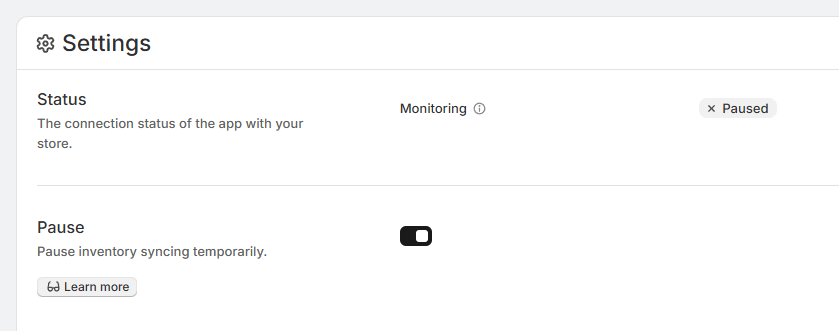
In plain language, this means the app is standing by and waiting until you turn syncing back on.
Note: If you make inventory changes while syncing is paused, the app will not automatically pick them up during that paused period because it is not being notified about those changes.
How to turn syncing back on
When you are ready to resume normal syncing, go back to the Settings page and use the same toggle again to turn Pause off.
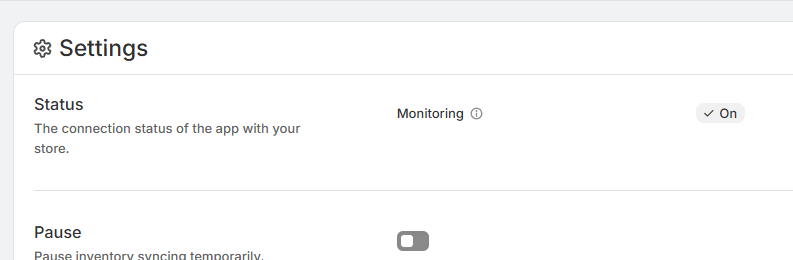
Once syncing is active again, the monitoring status changes to On. This shows that the app is monitoring for inventory changes again.