 SKU Stock Sync Docs
Creating / updating groups
Learn how groups are created and updated by changing variant SKUs and locations in Shopify, what happens next in the app, and how to process queued setup items sooner.
Groups are created automatically by SKU Stock Sync: when variants use the same SKU and are stocked at the same Shopify location, the app places them into the same group. You do not need to build groups manually.
You can also manage groups directly from the Groups page in the app. See What you can do from the Groups page below.
Note: Before you continue, it helps to understand what a group is and why SKU and location both matter. See What SKU/location groups are.
How groups are created
To create a new group or update an existing one, make your changes in the Shopify admin:
-
Choose the variants you want to share stock: Pick the variants that should always stay in sync with each other.
-
Give those variants the same SKU: Update each variant so the SKU matches exactly. Even a small difference means they will not be treated as the same group.
-
Make sure they are stocked at the same Shopify location: The variants also need to be stocked at the same location. Matching SKU alone is not enough.
-
Save your changes in Shopify: Once the SKU and location match, the app can prepare those variants to be grouped together.
Tip: You can group variants from different products, not just variants inside the same product. If the SKU matches and the stocked location matches, they can still belong to the same group.
You can also update an existing group the same way. For example, if you want to add another variant into a group, update that variant in Shopify so it has the same SKU and the same stocked location as the rest of the group.
What you can do from the Groups page
The Groups page lets you view and manage your groups directly in the app, without needing to make every change in Shopify:
-
Ignore a group so it's excluded from syncing: see Ignoring groups
-
Set a group's stock directly: see Setting a group's stock
-
Change a group's SKU: see Changing a group's SKU from the app
-
Check whether a group is in sync: see Checking if a group is in sync
-
Scan for inventory items the app hasn't detected yet: see Scanning for new items
What happens after you make changes in Shopify
Your changes are not applied to a group instantly.
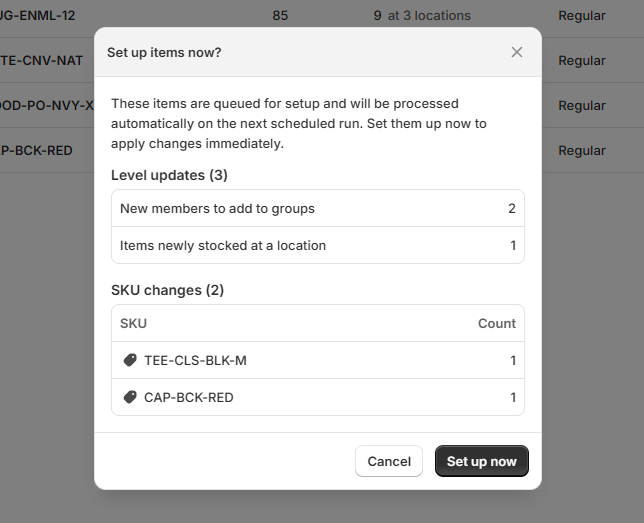
After you update variants in Shopify, SKU Stock Sync detects those changes and queues the affected items for setup. That setup step prepares them so the app can sort them into the correct group.
Info: This delay is expected. If you do not see the variants in their group right away, it usually means they are waiting to be processed.
Queued setup items are processed 2-3 minutes before a sync, so they're sorted in time if they need to be part of a sync.
How to check if items are waiting for setup
You can check for queued setup items from the manual sync action on the Groups page.
Look for the Waiting for setup row. If it shows a number greater than zero, those items have been detected and are waiting to be processed into the correct group.
This is the best place to confirm that the app has picked up your Shopify changes, even if the group has not been updated yet.
How to process queued setup items sooner
If you do not want to wait for the next scheduled run, you can process queued setup items sooner with a manual sync.
-
Open the Groups page: Go to the app's Groups page.
-
Start a manual sync: Open the manual sync modal.
-
Make sure queued setup processing is enabled: In the modal, confirm that Process queued setup items in this sync is checked.
-
Run the sync: Start the sync. The app will process those queued setup items so they can be sorted into the correct group sooner.
If you want more detail on manual syncs, see Manual syncing.
Good to know
-
Groups are created and updated from your Shopify product and inventory data by default, or directly from the Groups page.
-
Variants can be in the same product or in different products and still be grouped together.
-
For variants to share stock, both the SKU and the stocked location must match.
-
If you change SKUs again later (in Shopify or from the Groups page), the app may need to re-sort those variants based on the new values.
Note: If you plan to rename or change SKUs after a group has already been set up, read Changing SKUs after setup.