
Manual syncing
What manual sync does
Manual sync lets you process work that is already waiting, sooner, instead of waiting for the next scheduled sync.
It is useful when you want faster confirmation that SKU Stock Sync has picked up work that is already ready to be processed.
Manual sync does not run a store-wide sync of your full catalog. It only processes work that is already waiting for attention, such as:
Groups that are currently due to sync
Members that are queued for setup so they can be sorted into the correct group
If nothing is currently due and no members are waiting to be prepared, a manual sync will not have any work to do.
Think of manual sync as a way to process pending work now. It is not a force-sync for every product or SKU in your store.
How to run a manual sync
In the app sidebar, go to Sync.
On the Sync page, find the Manual section and click Sync.
In the modal, select the waiting work you want to process in this manual sync.
Click Start sync to begin.
If you want to understand the normal timing first, see Scheduled syncing and When inventory gets synced.
Refreshing pending work
On the Sync page, there is a refresh icon beside Ready to sync now:, just above the Regular schedule section.
Clicking this refresh icon tells the app to recheck whether there is any pending work waiting right now.
It can update the counts for groups that are currently due.
It can also update what the manual sync modal will show if waiting work has changed.
Refreshing does not start a manual sync by itself. It only rechecks what is currently waiting to be processed.
This is useful if you recently made a change and want to confirm whether new work is now ready before starting a manual sync.
Manual sync modal
When you start a manual sync, a modal opens so you can choose which waiting work should be processed now.
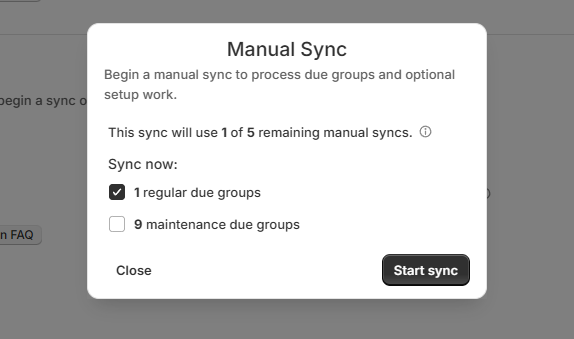
If groups are due on both schedules, the modal can show both options:
Regular due groups
Maintenance due groups (the daily schedule)
You can select either one, or select both if both are waiting and you want both processed in the same manual sync.
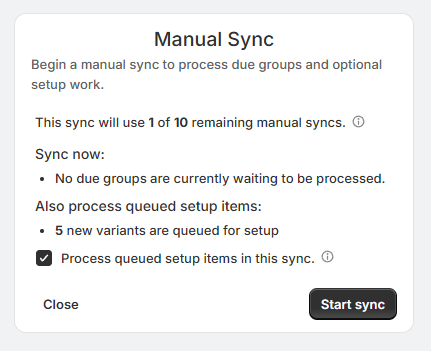
The modal can also appear in a second state: there may be no due groups ready to process, but there are still queued setup items available.
In that case, the modal will tell you that no due groups are currently waiting, and it will give you the option to process the queued setup items in this sync. This is helpful when new variants or members are still waiting to be prepared and assigned to the correct group.
When manual sync helps
Manual sync is most helpful when you know there is already work waiting and you want it handled sooner.
You have one or more groups that are already due, and you do not want to wait for the next scheduled run.
You recently made a small test change and want quicker confirmation that the app processes the waiting work.
You have members that still need to be set up and placed into the correct group.
If you are trying to speed up work that is already queued, manual sync can help. If you are expecting it to rescan your entire store, it will not do that.
What gets processed
A manual sync only processes work that is already waiting at the time you start it.
That can include:
Due groups that are ready on the regular schedule
Due groups that are ready on the daily schedule
Queued setup items that need to be prepared and assigned to the correct group
If you want to learn more about setup work and how groups are created or updated, see Creating and updating groups.
Important limits to know
Manual sync has a few built-in limits:
You can run up to 10 manual syncs per day.
Each manual sync can process up to 100 due groups.
Manual sync is designed to help you process waiting work sooner, not to replace scheduled syncing or bypass the app's normal processing limits.