
Testing the app
After setup is complete, the best way to build confidence is to test a small sync in a safe, controlled way.
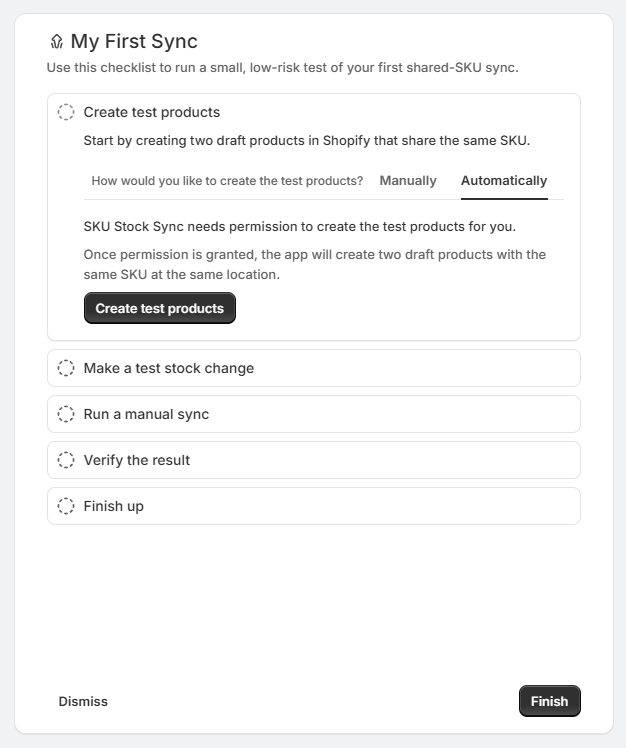
For most new users, the recommended option is My First Sync. It guides you through creating or using a small test group, making an inventory change, and reviewing the result in History.
If you prefer, you can also test the app manually with your own shared-SKU variants.
Before you begin, make sure you have already completed Quick setup.
Recommended option: My First Sync
My First Sync is the easiest way to confirm the app is working after setup. It is designed to help you reach your first successful sync with less guesswork.
My First Sync can help you create a safe test scenario, guide you through the steps, and point you back to History so you can review the result.
After setup is complete, open My First Sync from the app.
You can use the guide to create safe test products, or use your own small shared-SKU group if you already have one.
Make one small inventory change to one variant in the group.
SKU Stock Sync will detect the change and prepare the sync. Depending on your setup, you can let the app process it normally or run a manual sync if you want to check sooner.
After the sync runs, History will show what was checked, updated, or skipped.
Before you test manually
If you want to test the app with your own products instead of using My First Sync, make sure the variants you choose:
Share the exact same SKU
Are stocked at the same Shopify location
Are variants you intentionally want to sync together
If you want a quick refresher on the matching rule, see What are SKU/location groups?
Use a small test group and make only a minor inventory change. This test is meant to confirm the app is working, not to rework live inventory in bulk.
How to test the app manually
Choose a small group of variants that are supposed to stay aligned because they share one SKU. For a clean test, pick variants stocked at the same Shopify location and avoid using a large product group.
The most important condition is that the SKU matches exactly and the location matches too.
Choose just one variant in the group and make a small inventory adjustment in Shopify, such as increasing or decreasing the quantity by 1.
Only change one variant for this test. That makes it much easier to confirm that the matching variants updated because of the sync.
After you make the change, you can let SKU Stock Sync process it as part of normal syncing.
If you want to confirm the result sooner during testing, you can also run a manual sync from the app.
See Manual syncing if you want to use that option.
Check the other variants in the same shared-SKU group and confirm their quantities now match as expected.
You can also review the result in History to see what the app checked, updated, or skipped.
What a successful test looks like
You changed only one variant
The other variants with the same SKU at the same location updated to match
History shows a sync result for the change
If your first test works, that is usually the clearest sign that SKU Stock Sync is set up correctly.
If the quantities did not update
If the matching variants did not change as expected, check these pages next:
Work through the most common reasons a shared-SKU sync does not happen.
See how other apps can interfere with inventory changes and make test results look inconsistent.