
Creating / updating groups
You create and update groups in SKU Stock Sync by changing your variants in Shopify. When the variants you want to share stock use the same SKU and are stocked at the same Shopify location, the app can place them into the same group.
An option to manage this within the app is planned to be implemented.
This works whether the variants are in the same product or in different products. You do not need to build groups manually inside the app.
Before you continue, it helps to understand what a group is and why SKU and location both matter. See What SKU/location groups are.
How groups are created
To create a new group or update an existing one, make your changes in the Shopify admin:
Pick the variants that should always stay in sync with each other.
Update each variant so the SKU matches exactly. Even a small difference means they will not be treated as the same group.
The variants also need to be stocked at the same location. Matching SKU alone is not enough.
Once the SKU and location match, the app can prepare those variants to be grouped together.
You can group variants from different products, not just variants inside the same product. If the SKU matches and the stocked location matches, they can still belong to the same group.
You can also update an existing group the same way. For example, if you want to add another variant into a group, update that variant in Shopify so it has the same SKU and the same stocked location as the rest of the group.
What happens after you make changes
Your changes are not applied to a group instantly.
After you update variants in Shopify, SKU Stock Sync detects those changes and queues the affected items for setup. That setup step prepares them so the app can sort them into the correct group.
This delay is expected. If you do not see the variants in their group right away, it usually means they are waiting to be processed.
Queued setup items are processed 2-3 minutes before a sync. So they're sorted in time if they need to be apart of a sync.
How to check if items are waiting for setup
You can check for queued setup items from the Manual section of the Sync page.
Look for the Waiting for setup row. If it shows a number greater than zero, those items have been detected and are waiting to be processed into the correct group.
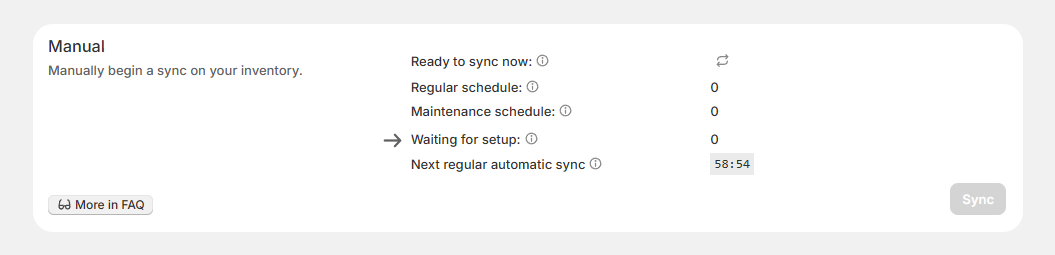
This is the best place to confirm that the app has picked up your Shopify changes, even if the group has not been updated yet.
How to process queued setup items sooner
If you do not want to wait for the next scheduled run, you can process queued setup items sooner with a manual sync.
Go to the app's Sync page.
Click Sync to open the manual sync modal.
In the modal, confirm that Process queued setup items in this sync is checked.
Start the sync. The app will process those queued setup items so they can be sorted into the correct group sooner.
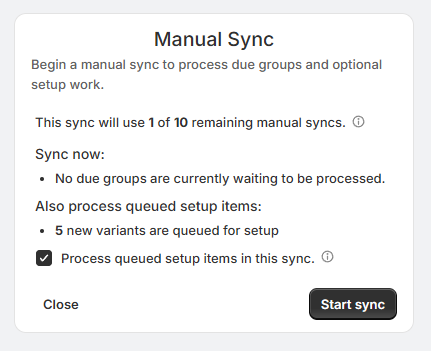
If you want more detail on manual syncs, see Manual syncing.
Good to know
Groups are created and updated from your Shopify product and inventory data, not by manually assembling variants inside the app.
Variants can be in the same product or in different products and still be grouped together.
For variants to share stock, both the SKU and the stocked location must match.
If you change SKUs again later, the app may need to re-sort those variants based on the new values.
If you plan to rename or change SKUs after a group has already been set up, read Changing SKUs after setup.