
Inventory keeps changing back
If inventory keeps changing back, start by checking who is changing the inventory in Shopify. The most common causes are expected syncing behavior, another app or integration updating the same inventory, or repeated manual changes to only one variant in a synced group.
SKU Stock Sync keeps variants aligned when they share the same SKU at the same Shopify location. If you manually change only one variant in a synced group, SKU Stock Sync may later update other variants in that group to match.
For more details, see What are SKU/location groups?.
Start with Shopify adjustment history
Shopify's adjustment history shows recent inventory changes for a specific variant and location. This is the best place to check whether SKU Stock Sync, another app, a staff member, or an order changed the inventory.
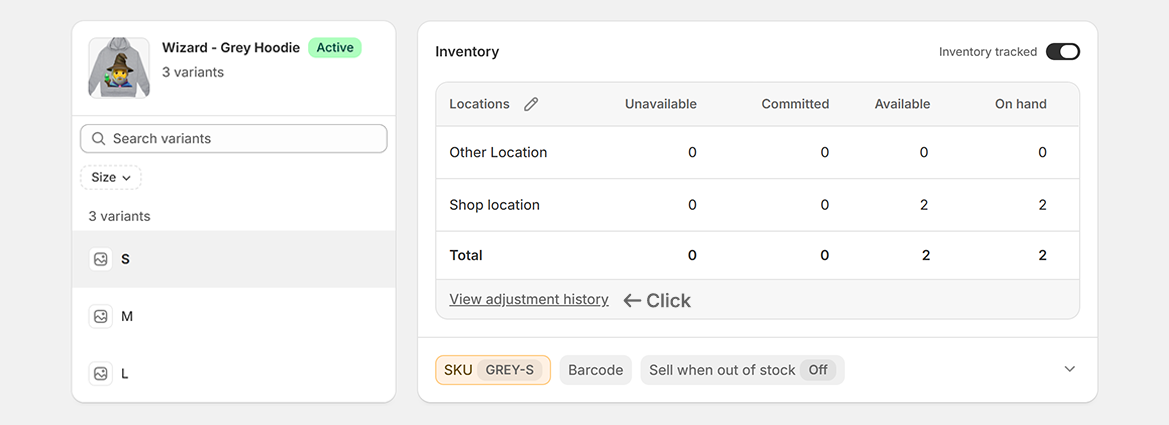
In Shopify, open the product variant where inventory keeps changing back.
In the inventory locations table, click View adjustment history.
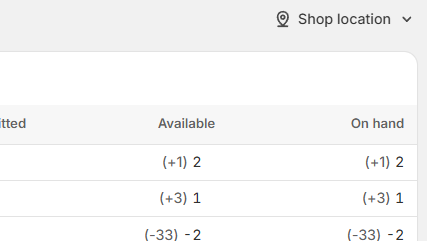
Make sure the location in the top right matches the Shopify location where the inventory is changing.
This matters because Shopify tracks inventory separately for each location.
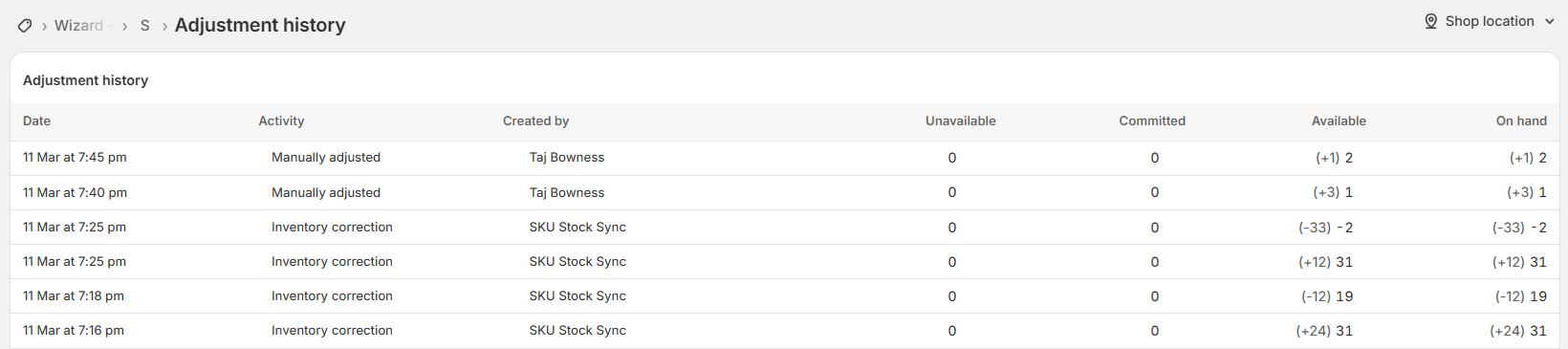
Look at the Created by column to see what made each inventory adjustment.
Check whether the inventory is repeatedly changed by SKU Stock Sync, another app, a staff member, or order activity.
What different changes can mean
SKU Stock Sync: The app made an inventory correction to align variants in the same SKU/location group.
Manual adjustment: A staff member or Shopify admin action changed the inventory.
Order activity: Shopify changed inventory because of an order, refund, cancellation, fulfillment, or related order event.
Another app or integration: A third-party app, warehouse system, feed, automation, or custom integration changed the inventory.
Manual adjustments, order-related activity, and inventory corrections from SKU Stock Sync can all be normal. The important thing is whether there is a repeating pattern that keeps undoing the inventory level you expect.
If SKU Stock Sync changed the inventory
If the adjustment history shows SKU Stock Sync changing the inventory, check whether the variant belongs to a synced SKU/location group.
This can be expected when:
You changed inventory for one variant, but other variants share the same SKU at the same location.
SKU Stock Sync later corrected the group so the matching variants stayed aligned.
The variant is part of a group that was already due for syncing.
If you want variants to share stock, this correction may be expected. If you do not want those variants synced together, they should not share the same SKU at the same Shopify location.
To check which variants share the SKU, see Check shared SKUs in Shopify.
If another app changes inventory after SKU Stock Sync
If another app or integration repeatedly changes inventory after SKU Stock Sync runs, that system may be reacting to SKU Stock Sync's updates and changing the stock again.
This can create a back-and-forth pattern where:
SKU Stock Sync corrects inventory for a SKU/location group.
Another app, feed, warehouse system, or custom integration sees that change.
That system updates the same inventory again.
SKU Stock Sync later sees another difference and corrects the group again.
SKU Stock Sync may conflict with other systems that also try to control the same inventory quantities. This is especially likely when another app reacts to every inventory change and then writes a different stock level back to Shopify.
Signs of a conflict
A conflict may be happening if you see patterns like these in adjustment history:
The same inventory quantity repeatedly moves up and down.
A third-party app changes inventory shortly after SKU Stock Sync.
SKU Stock Sync corrects the inventory, then another system changes it back.
The same SKU/location group keeps appearing in History with unexpected changes.
The final Shopify quantity does not match what you expected after the sync.
For broader troubleshooting, see Inventory did not sync.
What to check next
Open History in SKU Stock Sync and look for the affected SKU and location.
Confirm whether SKU Stock Sync processed the group and what quantity it attempted to set.
For more details, see Sync history.
Confirm that the variants using the same SKU at the same location are supposed to share inventory.
If they should not share stock, update the SKUs so they are no longer grouped together.
Review any apps, warehouse systems, feeds, ERPs, automations, or custom scripts that update inventory in Shopify.
Look for systems that write inventory shortly after SKU Stock Sync updates it.
If inventory is changing back and forth and you need to stop SKU Stock Sync temporarily, pause inventory syncing while you investigate.
For more details, see Pausing inventory syncing.
After checking the group and any other inventory tools, make a small test adjustment on a low-risk variant.
Then compare Shopify adjustment history with SKU Stock Sync History to see what changed the inventory and when.
If you do not want these variants synced together
SKU Stock Sync groups variants by SKU and location. If two variants should not share stock, they should not use the same SKU at the same Shopify location.
Give unrelated variants different SKUs.
Check that the SKU does not have an accidental extra match in Shopify.
Confirm the affected variants are not stocked together at the same location if they should be managed separately.
For more details, see Changing SKUs after setup.
Important things to know
SKU Stock Sync does not decide stock levels by itself. It reacts to inventory changes and aligns variants in the same SKU/location group.
If another system also controls the same inventory, the two systems can compete with each other.
Shopify adjustment history is the best place to check who changed inventory for a specific variant and location.
SKU Stock Sync History shows what the app processed. Shopify adjustment history shows the broader Shopify inventory changes for that variant and location.
Pausing SKU Stock Sync can help you investigate, but it will also stop the app from processing inventory changes while paused.
When to contact support
If inventory keeps changing back and you cannot tell what is causing it, contact support and include:
The affected SKU
The Shopify location
The product or variant where the issue is happening
The quantity you expected
The quantity Shopify keeps changing to
A screenshot of Shopify adjustment history for the affected variant and location
Any other apps, feeds, warehouse systems, or integrations that update inventory
The most useful screenshot is the Shopify adjustment history with the correct location selected.