
Sync history
What Sync history shows
Whenever a sync makes changes, SKU Stock Sync creates a history log for that run. This gives you a clear record of what changed, where it changed, and whether anything needs your attention.
Sync history helps you answer questions like:
Which sync runs made updates
Which groups were affected in each run
Which members inside those groups were updated
What the stock value was before the sync and after the sync
Whether any groups or members had issues
If you want broader patterns and performance trends, see Insights.
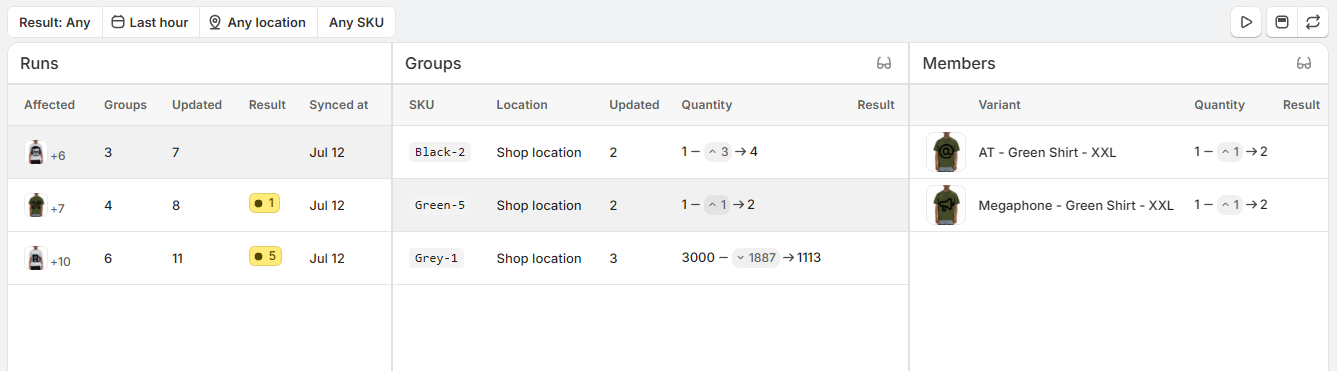
When fully expanded, the Sync history view is split into three columns: sync runs on the left, groups in the middle, and members on the right.
How to read a sync run
The page is designed to let you move from a high-level view into the exact items that changed.
Start in the left column. Each row represents a past sync run. Click a run to load the groups that were part of that run.
In the middle column, you will see the groups affected by the selected run. This helps you understand which sets of products or locations were involved.
Click any group to view the members updated within that group in the right column.
For each group or member update, review the quantity change shown in the history log. This lets you see the stock value before the sync and the stock value after the sync.
This layout makes it easy to trace a sync from the overall run down to the exact products or variants that changed.
Understanding the three columns
Runs: Shows each past sync run and a summary of what happened in that run.
Groups: Shows the groups included in the selected run.
Members: Shows the individual members updated in the selected group.
You can resize any column by dragging its border. This is helpful when you want more room to read longer names, quantities, or result labels.
Group and member issues
Most history entries simply show what was updated, but Sync history also helps you spot when something could not be updated as expected.
If a group encountered an issue during a sync, an issue indicator appears beside that group. This gives you a quick signal that something in that group needs a closer look.
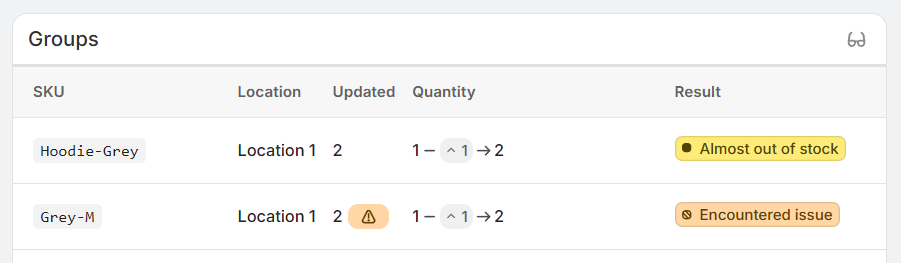
Members can also show issues. When that happens, you will see an issue label beside the affected member.
Click the issue label to open a popup with more detail about why that member was not updated. This can help you quickly understand whether the problem was caused by a missing location, stock availability, or another data condition that prevented the update.
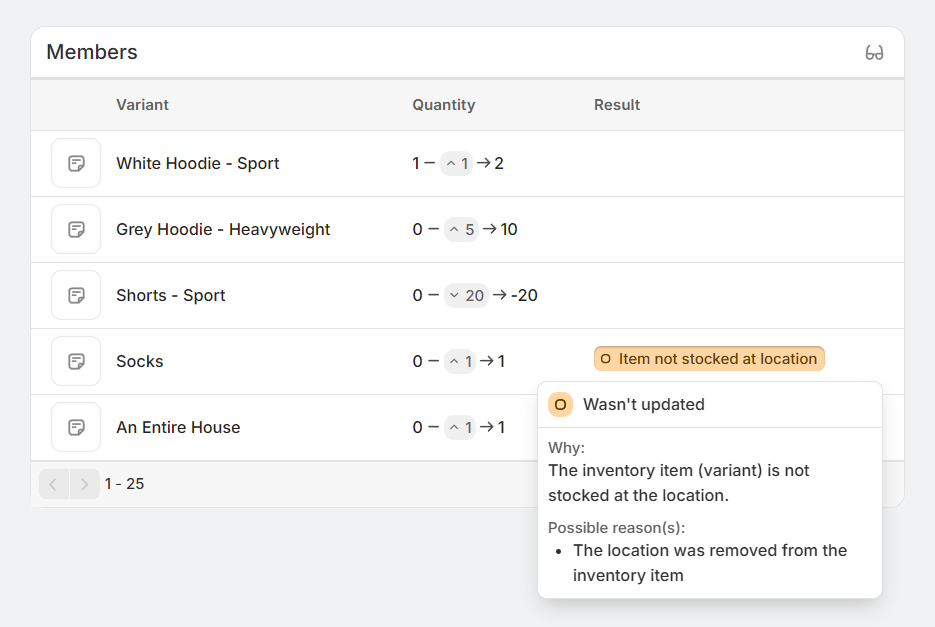
An issue in Sync history does not always mean the entire sync failed. It may only affect one group or one member, which is why drilling into the details is useful.
Tips for reviewing history
Check the before-and-after quantities to confirm exactly what changed.
Look for issue indicators beside groups and members if something did not update as expected.
Resize columns when names or result messages are cut off.
If you are investigating why an item did not change, open the relevant sync run, select the group, then click the member's issue label. The popup is the best place to find the reason that update was skipped.
Why this page matters
Sync history is your audit trail for stock changes made by SKU Stock Sync. It gives you a reliable way to confirm updates, review affected groups and members, and understand exceptions without guessing. When you need confidence in what happened during a sync, this is the page to check first.