
Sync status
What Sync status means
The Sync status on the Sync page shows the app's current connection and monitoring state with your Shopify store. It gives you a quick way to confirm whether SKU Stock Sync is actively watching for inventory changes, temporarily paused, or needs attention.
In most day-to-day use, if you expect inventory syncing to be active, your status should be On. If you have intentionally stopped syncing, it should be Paused.
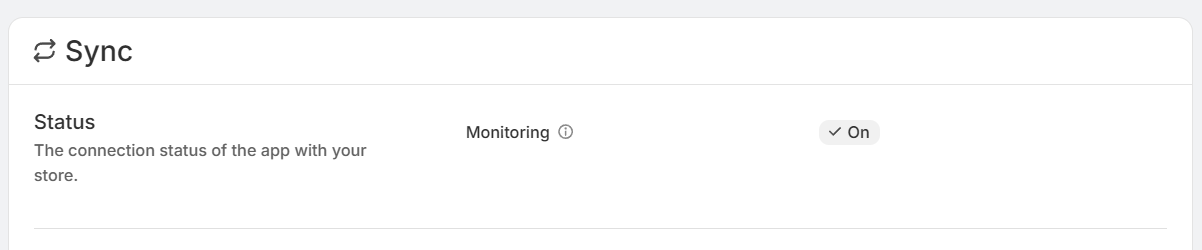
The Sync page is the best place to check whether the app is fully connected and monitoring your store as expected.
The possible statuses
On
On means the app is fully connected to your store and actively monitoring inventory changes.
Your connection to the store is complete.
The app is ready to process inventory syncing.
This is the normal status when everything is working as expected.
If you have finished setup and want the app syncing normally, this is the status you should expect to see.
You can learn more about what happens after setup in Setup complete: what happens next.
Paused
Paused means you have temporarily paused syncing.
The app will not process syncs while paused.
This is expected if you intentionally stopped syncing for a period of time.
Your store is not actively being monitored for sync processing in this state.
If you paused syncing on purpose, there is nothing wrong. The app will stay paused until you resume syncing.
For more detail, see Pausing inventory syncing.
Disabled
Disabled means your store does not currently have an active app plan or trial, so syncing is turned off.
The app is not able to sync inventory in this state.
This is related to billing or plan access rather than a temporary connection issue.
Until the store has an active plan or trial, syncing will remain disabled.
If you expected syncing to be active and see Disabled, check whether your app plan or trial is still active.
Not connected
Not connected means the app is not fully connected to your store.
The connection may be missing or only partially completed.
You may see a refresh button beside the status label.
That refresh button lets you retry the app's connection to the store.
If you see Not connected, try using the refresh button beside the label first. If the connection succeeds, the status should update.
What you should expect
If you want normal syncing: the status should be On.
If you intentionally stopped syncing: the status should be Paused.
If your plan or trial is inactive: you may see Disabled.
If the app is not fully connected: you may see Not connected, and you can retry with the refresh button.