
Another app is changing inventory
If another app is changing inventory, SKU Stock Sync may not be the only system updating stock in Shopify. This can make inventory look unexpected, delayed, or like it keeps changing back.
If inventory keeps changing after SKU Stock Sync runs, see Inventory keeps changing back.
What counts as another inventory system?
Another inventory system can be any tool or workflow that updates inventory quantities in Shopify.
Inventory management apps
Warehouse or fulfillment systems
ERP systems
Product feed apps
Automation apps
Custom scripts or private integrations
Staff workflows that manually adjust inventory
Another app is not automatically a problem. It becomes a problem when it updates the same inventory quantities that SKU Stock Sync is trying to keep aligned.
Why this can cause problems
SKU Stock Sync reacts to inventory changes and aligns variants that share the same SKU at the same Shopify location.
If another system also updates those same quantities, the two systems can compete with each other.
SKU Stock Sync may correct a SKU/location group.
Another app may detect that change and write a different quantity back to Shopify.
SKU Stock Sync may later detect another difference and correct the group again.
The inventory may look like it is changing unexpectedly or changing back.
If two systems are both trying to be the source of truth for the same inventory, the result can be confusing or unstable. Choose which system should control those quantities.
Check who is changing inventory
The best place to start is Shopify adjustment history. It can show what created recent inventory adjustments for a specific variant and location.
In Shopify, open the product variant where inventory is changing unexpectedly.
In the inventory locations table, click View adjustment history.
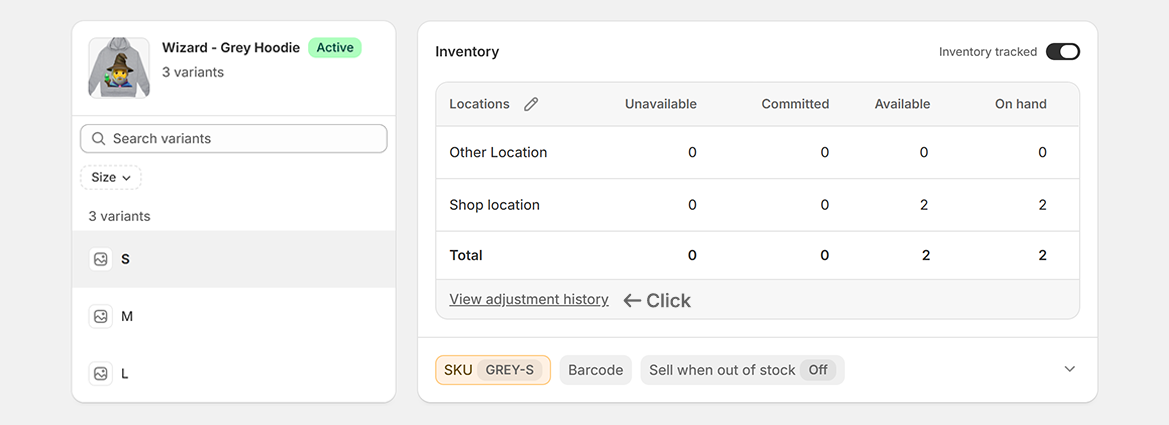
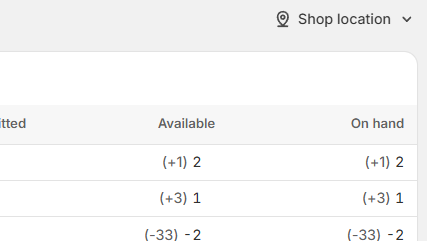
Make sure the selected location matches the location where the inventory issue is happening.
Inventory is tracked separately for each Shopify location.
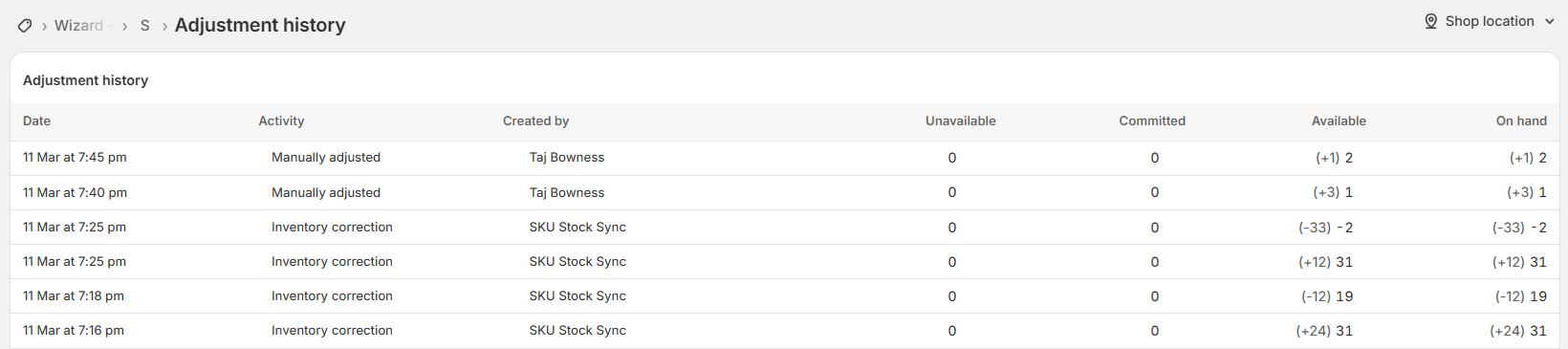
Look at the Created by column to see what made each inventory adjustment.
Check whether another app or integration updates inventory shortly before or after SKU Stock Sync.
Signs another app may be interfering
Another app or integration may be affecting inventory if you notice patterns like these:
A different app changes inventory shortly after SKU Stock Sync.
The same quantity keeps moving up and down.
SKU Stock Sync updates the group, then another system changes one item back.
The same SKU/location group keeps needing repeated corrections.
The problem only happens for products managed by a specific app, feed, warehouse, or integration.
Compare Shopify adjustment history with SKU Stock Sync History
Shopify adjustment history shows inventory changes for a specific variant and location. SKU Stock Sync History shows what the app processed during sync runs.
In SKU Stock Sync, open the History page.
Use the affected SKU and Shopify location to find related sync activity.
Review the group and members that were processed during the run.
Compare the before-and-after quantities in SKU Stock Sync History with the changes shown in Shopify adjustment history.
If another app changed inventory after SKU Stock Sync, that app may be the reason the final quantity looks wrong.
For more details, see Sync history.
What to do if another app is changing inventory
If another app or integration is updating the same inventory, decide which system should control that stock.
If SKU Stock Sync should control the shared stock: adjust the other app so it does not overwrite those quantities.
If the other app should control the stock: avoid grouping those variants in SKU Stock Sync, or pause SKU Stock Sync while you review the setup.
If both systems are needed: make sure they are responsible for different products, locations, or workflows.
Do not leave two apps fighting over the same inventory quantities. Even if each app is working correctly on its own, the combined behavior can still create incorrect or confusing stock changes.
Pause syncing while you investigate
If inventory is changing unexpectedly and you need time to investigate, you can temporarily pause SKU Stock Sync.
Pausing can help you check whether another app is still changing inventory without SKU Stock Sync processing new inventory changes during the investigation.
While SKU Stock Sync is paused, the app will not monitor or process inventory changes. Only pause syncing if you understand that syncing will stop during that time.
For more details, see Pausing inventory syncing.
Important things to know
Shopify adjustment history is the best place to check who changed a specific variant at a specific location.
Another app may change inventory before or after SKU Stock Sync runs.
If another app is the source of truth for inventory, SKU Stock Sync may need to be paused or the affected SKUs may need to be separated.
If SKU Stock Sync is the source of truth for shared stock, other apps should not overwrite those same quantities.
When to contact support
If you cannot tell whether another app is changing inventory, contact support and include:
The affected SKU
The Shopify location
The product or variant where the issue is happening
The quantity you expected
The quantity Shopify shows now
A screenshot of Shopify adjustment history with the Created by column visible
A screenshot or description of the matching SKU Stock Sync History run, if available
The names of any other apps, feeds, warehouse systems, or integrations that update inventory
The most useful details are the SKU, location, adjustment history, and the names of any other inventory tools connected to your store.