
Inventory did not sync
If inventory did not update the way you expected, start by checking whether SKU Stock Sync has processed that SKU/location group recently.
SKU Stock Sync is not instant. Inventory changes are processed during scheduled syncs, or sooner if you run a manual sync for work that is already waiting.
For more details, see When inventory gets synced.
Start with Sync history
The quickest way to troubleshoot a missing sync is to check whether the affected SKU/location group appears in History.
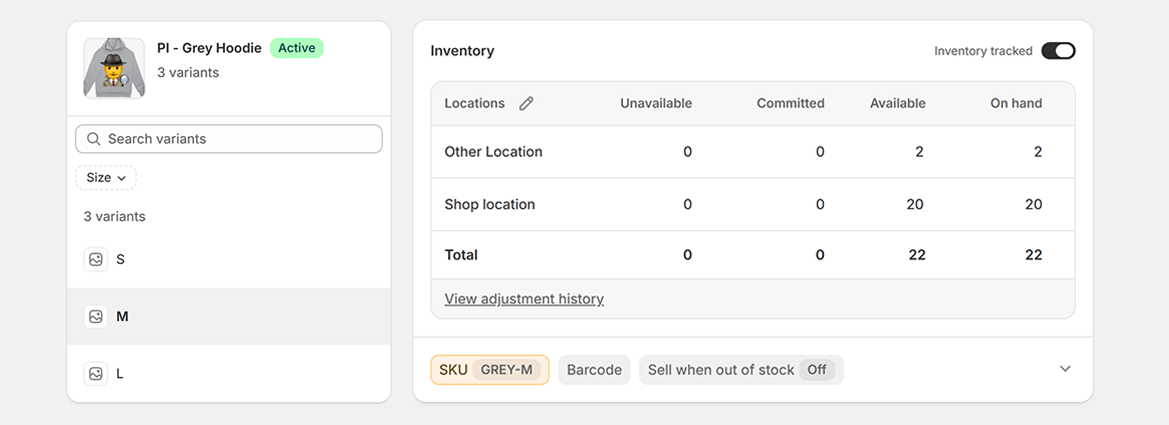
In Shopify, open the variant that did not sync as expected.
Make note of the variant's SKU and the location where the inventory quantity changed.
In SKU Stock Sync, open the History page.
History shows previous sync runs and the groups that were processed during those runs.
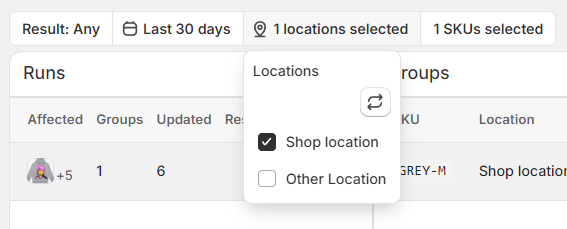
Use the location filter to select the Shopify location where the inventory change happened.
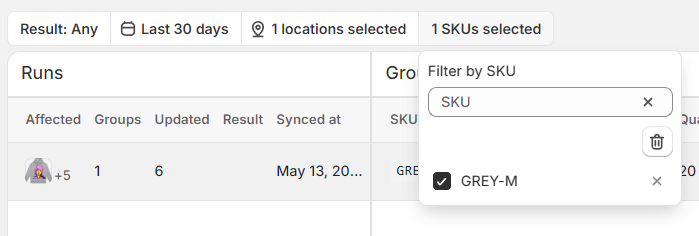
Use the SKU filter to select the SKU that did not sync as expected.
Use a recent date range, such as Last 30 days, then review whether any sync runs appear for that SKU and location.
If the group appears in History
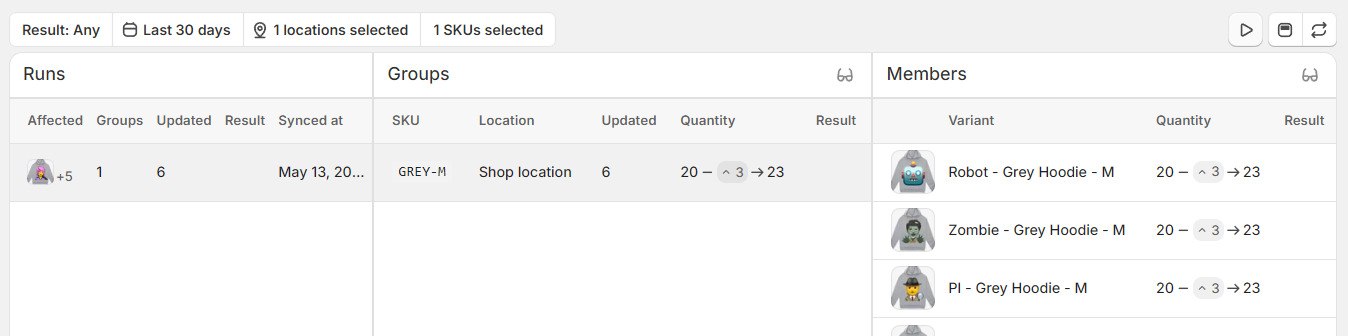
If a matching run appears, SKU Stock Sync did process that SKU/location group. Open the run and review the group and member details.
What to check
Check the group result. Confirm whether the group was updated, skipped, or had no change to make.
Check the members list. Confirm whether the variant you expected to sync appears in the group members.
Check the location. Make sure the run is for the same Shopify location where the inventory change happened.
Check the quantity change. Compare the quantity shown in History with the quantity you expected in Shopify.
If the run appears in History but a variant is missing from the members list, the most likely cause is that the variant was not part of that SKU/location group at the time of the sync.
To check the SKU side first, see Check shared SKUs in Shopify.
If the group does not appear in History
If no matching run appears, it usually means SKU Stock Sync has not processed that SKU/location group recently, or there was no inventory update to record.
Common reasons
The sync has not run yet. Inventory changes are processed on a schedule, not always immediately.
The group was not due. SKU Stock Sync processes groups that have been marked as needing attention.
The variants do not share the exact same SKU. Even a small difference can stop variants from being grouped together.
The variants are not stocked at the same location. Matching SKU alone is not enough.
The group only has one member. If there are no other matching variants at that location, there is nothing else to sync.
The item is new or recently changed. New products, new variants, or changed SKUs may need to be prepared before they can be included in syncing.
Another app changed inventory afterward. Other inventory apps, integrations, or custom workflows can make the final Shopify quantity look different after SKU Stock Sync runs.
What to check next
Check that the variants you expect to sync use the exact same SKU in Shopify.
For a quick walkthrough, see Check shared SKUs in Shopify.
Make sure the variants are stocked at the same Shopify location.
The same SKU at a different location is treated as a separate group.
Open the Sync status page and confirm that SKU Stock Sync is not still setting up or paused.
For more details, see Sync status.
If the product, variant, or SKU was recently created or changed, open the Manual section on the Sync page and check whether any items are waiting for setup.
For more details, see Creating / updating groups.
If the setup looks correct, make a small test inventory change on one low-risk variant in the group.
You can then wait for the next scheduled sync, or use manual sync if the group is ready to process.
For a full walkthrough, see Testing the app.
Important things to know
SKU Stock Sync syncs variants by SKU and Shopify location.
Manual sync processes work that is already waiting. It does not force-sync every SKU in your store.
History shows sync activity from SKU Stock Sync. It is not a full audit log of every inventory change made in Shopify.
If another app updates the same inventory after SKU Stock Sync runs, Shopify may show a different final quantity than expected.
When to contact support
If the group still does not sync after checking the steps above, contact support and include:
The SKU that did not sync
The Shopify location where the inventory changed
The product or variant that was changed
What quantity you expected
What quantity Shopify shows now
Whether another app or integration also updates inventory for those products
The more specific the SKU, location, and expected quantity are, the easier it is for me to trace what happened.